ArchiCAD guide
How to import generated OBJ files in ArchiCAD
Import generated OBJ furniture files into ArchiCAD as GDL objects with textures, meter units, and clean 2D and 3D representation settings.
ArchiCAD 29
OBJ
How to import the generated OBJ files
Follow this sequence after downloading the generated archive. The key details are using meter units, importing textures into the Embedded Library, and disabling visible 3D edges before placement.
Source file
model.obj
Units
meter, Y-Up
Textures
Embedded Library
- Step 1File menu
Start the OBJ import
After unzipping the generated .zip, open File > Libraries and Objects > Import OBJ as GDL Object. Keep the extracted files together while importing so ArchiCAD can bring textures into the embedded library. - Step 2Extracted folder
Select model.obj
In the unzipped folder, find model.obj and double-click it to begin the import. - Step 3Import settings
Keep the OBJ open options
Use these settings exactly, then click OK to continue with the import.- Import textures to Embedded Library: on
- Length unit: meter
- Up direction: Y-Up (standard)
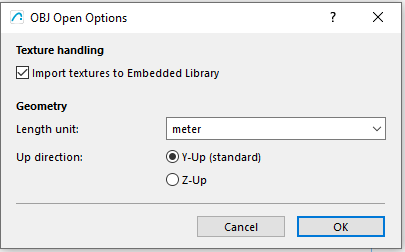
OBJ Open Options for ArchiCAD 29. - Step 4Object Tool
Load the imported object
Go to the Object Tool and double-click it to open the Object Default Settings. Select the imported model object from the Embedded Library if it is not already active.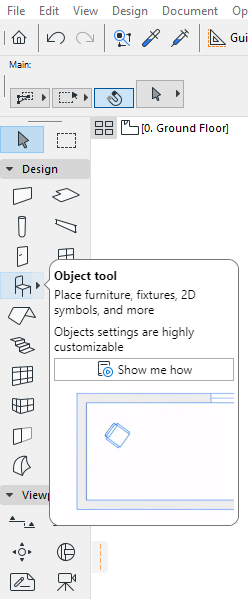
Open the Object Tool to load the imported library object. - Step 5Object settings
Set 2D and 3D representation
Before placing the object, adjust the line colors so the object reads cleanly in plan and does not show unwanted 3D edges.- In 2D Representation, set Contour Pen to the color you want for the floor plan.
- In 3D Representation, set Contour Pen to white.
- Turn off Show edges.
- Click OK, then click where you want to insert the object.
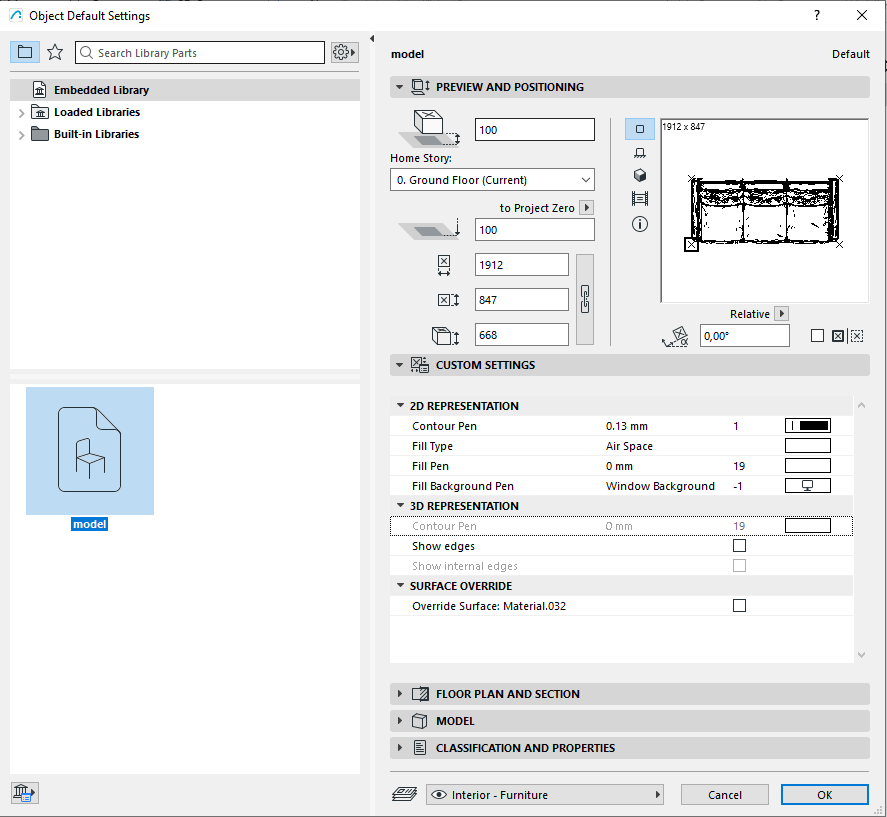
Object settings before placing model.obj.
Done. The imported OBJ is now a GDL object in ArchiCAD, ready to place in the project and reuse from the Embedded Library.
Need the SketchUp workflow too?
If your generated furniture model needs to move into SketchUp, use the GLB and USDZ import guide and turn off Profiles for a cleaner model view.
Open SketchUp guide