Furniture image upload
Start with a clear furniture photo and use FloorPlan AI to create a 3D model from the image.
Image to 3D model
Upload a furniture image and generate a 3D model you can use in SketchUp, ArchiCAD, Blender, or directly inside the FloorPlan AI web editor.
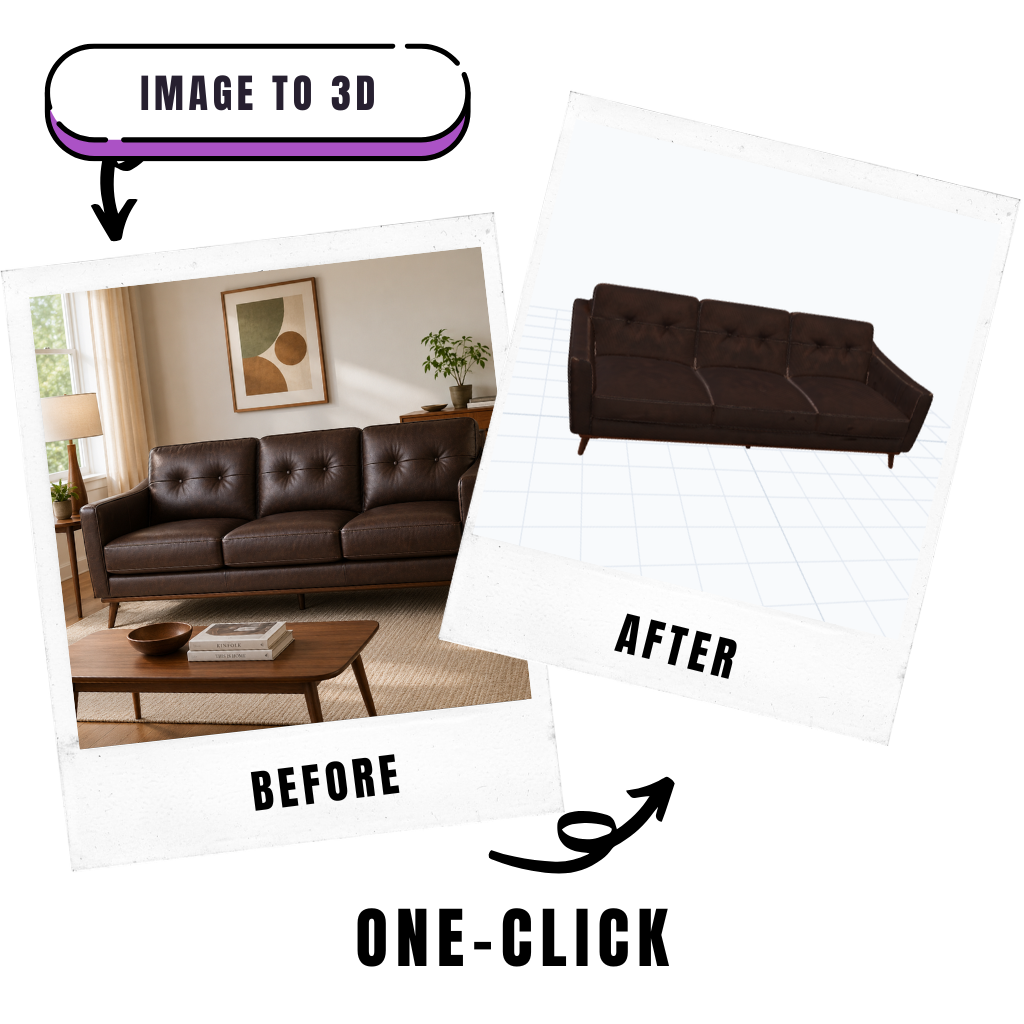
Photo to 3D model
A furniture image is useful as a reference, but it is hard to place inside a 3D workflow by itself. FloorPlan AI helps bridge that gap by turning a product photo or furniture picture into a generated 3D model you can preview, download, and use in design software.
The image to 3D model workflow is made for fast furniture visualization. Instead of searching for a similar chair, sofa, table, cabinet, or decor item, you can start from the actual reference image and create a custom model for the project.
Use the result in SketchUp, ArchiCAD, Blender, or directly inside the FloorPlan AI web editor when your floor plan needs furniture that matches a real object.
Feature highlights
Use FloorPlan AI when you need an AI image to 3D model tool for furniture references, not a generic image effect. The workflow is built around usable 3D assets for floor plans, room design, and model-based visualization.
Start with a clear furniture photo and use FloorPlan AI to create a 3D model from the image.
Convert image to 3D model output without manually modeling the furniture shape from scratch.
Use generated furniture models in SketchUp, ArchiCAD, Blender, and other 3D design workflows.
Bring custom furniture into the FloorPlan AI web editor so floor plans can include project-specific pieces.
Workflow
Start with an image, generate the furniture model, then use it in the 3D environment that fits your project. The same model can support floor plan editing, furniture placement, design review, and downstream rendering work.
Choose a product photo, reference image, or furniture picture with a clear view of the object.
FloorPlan AI uses an AI image to 3D model workflow to create a downloadable furniture asset.
Review the generated model, then download available 3D formats for your design software.
Import the model into SketchUp, ArchiCAD, Blender, or place it directly in the FloorPlan AI editor.
Design software
A sketchup image to 3D workflow helps when you have a furniture reference but do not want to recreate the object manually. Generate the model from an image, download the available format, and bring it into your SketchUp project.
The same approach works for image to 3D Blender workflows. Instead of blocking on base modeling, you can start with a generated furniture asset, refine it as needed, and use it in room scenes, material studies, or presentation renders.
Inside FloorPlan AI, custom furniture models can help make a plan feel closer to the real project. That is useful when the layout depends on specific furniture scale, product choice, or client-owned pieces.
A practical web-friendly format for previewing furniture models and using them in modern 3D workflows.
A common 3D exchange format for moving furniture assets into modeling and visualization software.
Useful when a downstream 3D pipeline or rendering workflow expects FBX-compatible model files.
Additional export options that can support broader model review, AR, and fabrication-oriented workflows.
Import guides
After generating a furniture model, follow the step-by-step import guide for the software you use.
Furniture-specific modeling
Use real furniture references when a generic model does not communicate the shape, scale, or design intent clearly enough.
Combine generated furniture assets with FloorPlan AI planning, 3D previews, interior renders, and presentation workflows.
FAQ
An image to 3D model converter turns a photo or reference image into a 3D asset. In FloorPlan AI, the workflow is focused on furniture, so you can upload a furniture image and generate a model for design, rendering, or floor plan visualization.
Yes. Upload a clear furniture image, generate the model, preview the result, and download the available 3D files for tools such as SketchUp, ArchiCAD, and Blender.
Yes. The image to 3D workflow is built for furniture models that can be used in SketchUp and other 3D tools. FloorPlan AI also includes guidance for importing supported model formats into SketchUp.
You can start from the FloorPlan AI web app and test the image to 3D model workflow with the available free entry point or account credits shown in the product.
No. This page is about converting furniture images into 3D models. For a full house plan workflow, use the AI floor plan generator, the floor plan creator, and the 3D house plan design feature.
Upload a furniture image, generate a 3D model, and use the result in SketchUp, ArchiCAD, Blender, or directly inside the FloorPlan AI web editor.
Start image to 3D model conversion