SketchUp guide
How to import generated models in SketchUp
Import GLB or USDZ furniture models generated by FloorPlan AI into SketchUp and turn off Profiles so the imported model displays cleanly.
SketchUp
GLB
USDZ
How to import the generated model in SketchUp
Import the generated GLB or USDZ file through the SketchUp import flow, then disable Profiles in Edge Style so the model appears without unwanted thick contour lines.
Formats
GLB, USDZ
Import menu
File > Import
Required view setting
Profiles off
- Step 1Download
Choose a SketchUp-friendly format
Download either GLB or USDZ from the generated model formats. These are the color-preserving formats shown in the model modal. - Step 2File menu
Import the generated file
In SketchUp, open File > Import, choose the generated GLB or USDZ file, and confirm the import. - Step 3Edge Style
Turn off Profiles
Open View > Edge Style and make sure Profiles is not selected. This prevents thick outline edges from appearing around the imported model.- Edges can remain selected.
- Profiles must NOT be selected.
- Back Edges, Depth Cue, and Extension are optional for your view style.
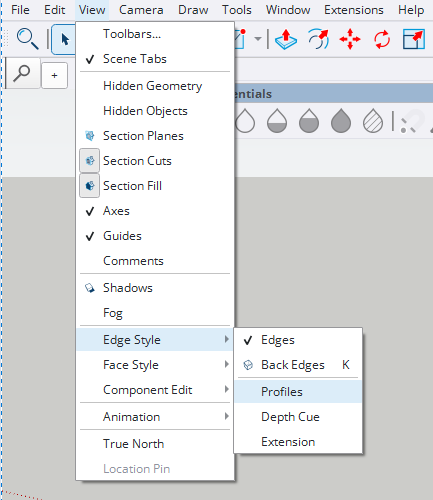
Required SketchUp view setting: Profiles must be off.
Done. The model is imported and Profiles is off, so the SketchUp view will not add extra contour thickness around the object.
Need the ArchiCAD workflow too?
If your generated furniture model needs to move into ArchiCAD, use the OBJ import guide for the correct library, unit, texture, and representation settings.
Open ArchiCAD guide