3D rendering interior design
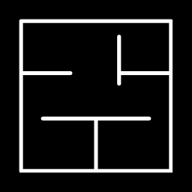
Start from a generated floor plan or 3D house plan, then create interior renders for rooms using the layout as design context.
Start from 3DFloorPlan AI helps you visualize rooms before you commit to furniture, finishes, and decor. Use 3D rendering interior design from your house plan, or upload photos of your residence to furnish the space, change furniture, and explore new styles.
Two ways to render
The first workflow starts from your project model. Generate or edit a floor plan, preview the 3D house plan, and create an interior render for rooms such as the living room, kitchen, bedroom, bathroom, office, or dining area.
The second workflow starts from an uploaded image. Send a reference photo from your residence, then ask FloorPlan AI to furnish the room, replace furniture, change the style, update colors, or test another design direction while keeping the room context visible.
Start from a generated floor plan or 3D house plan, then create interior renders for rooms using the layout as design context.
Start from 3DUpload photos of your residence and use AI to furnish the room, replace furniture, test decor ideas, or change the interior style.
Start from an imageWorkflow
Start with the source that fits your project: a 3D plan when the layout is already defined, or a reference image when you want to redesign an existing room.
Start from a 3D floor plan workflow or upload a reference image of the room you want to redesign.
Ask for furniture, style changes, material updates, color palettes, lighting mood, or a full interior design direction.
FloorPlan AI creates a visual interior render that helps you review the design before committing to furniture or finishes.
Generate variations in different styles, adjust furniture or decor, and choose the option that fits the project.
Interior render features
Interior design rendering is useful when you need to communicate a room direction before buying furniture or specifying finishes. Use AI to test style, materials, furniture placement, and atmosphere.
Use a reference photo or room context to add furniture, lighting, rugs, decor, and a clearer interior direction.
Keep the room structure and ask for new furniture, a different palette, updated materials, or another design mood.
Create room visuals after generating a floor plan and reviewing the 3D layout in FloorPlan AI.
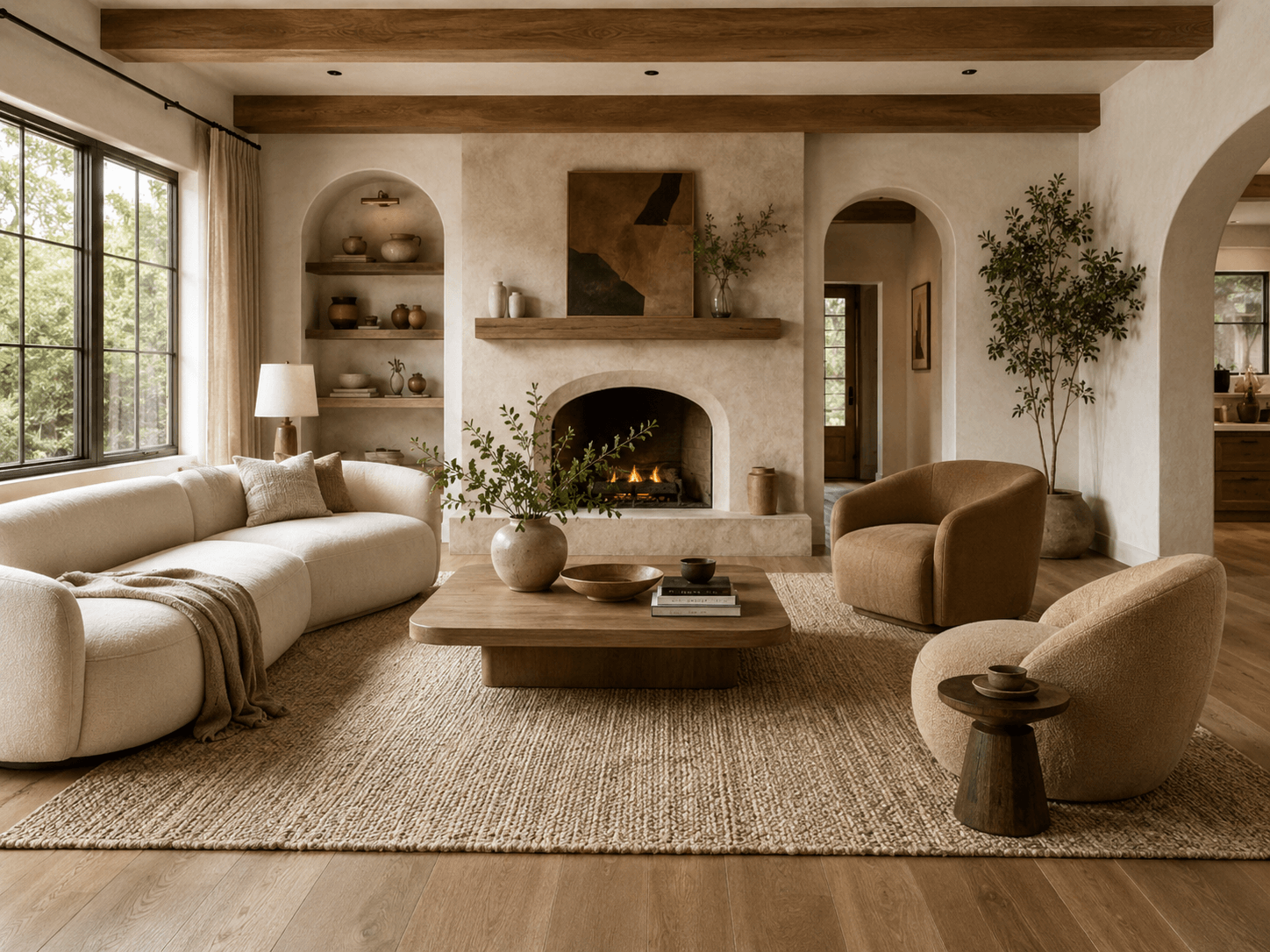
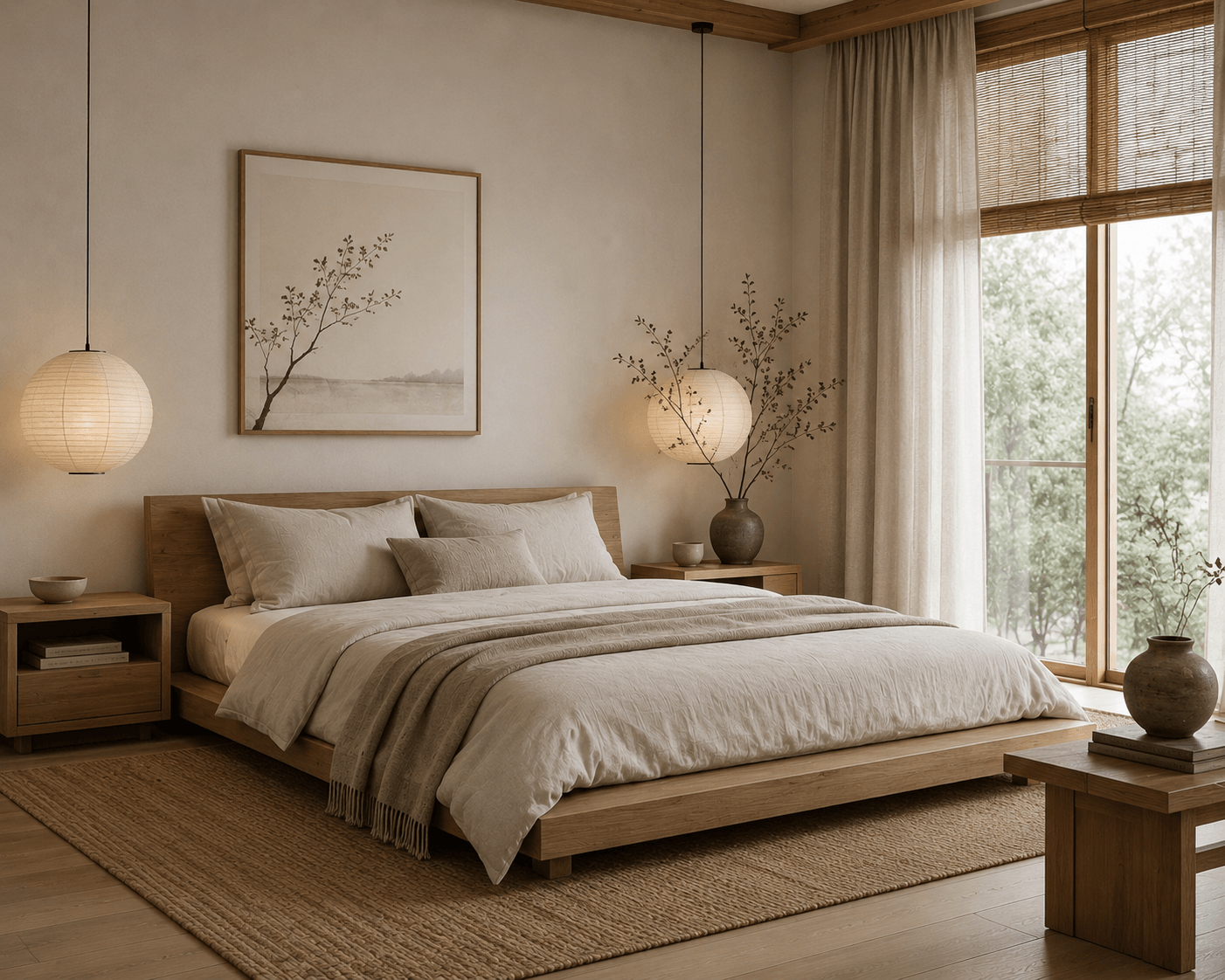
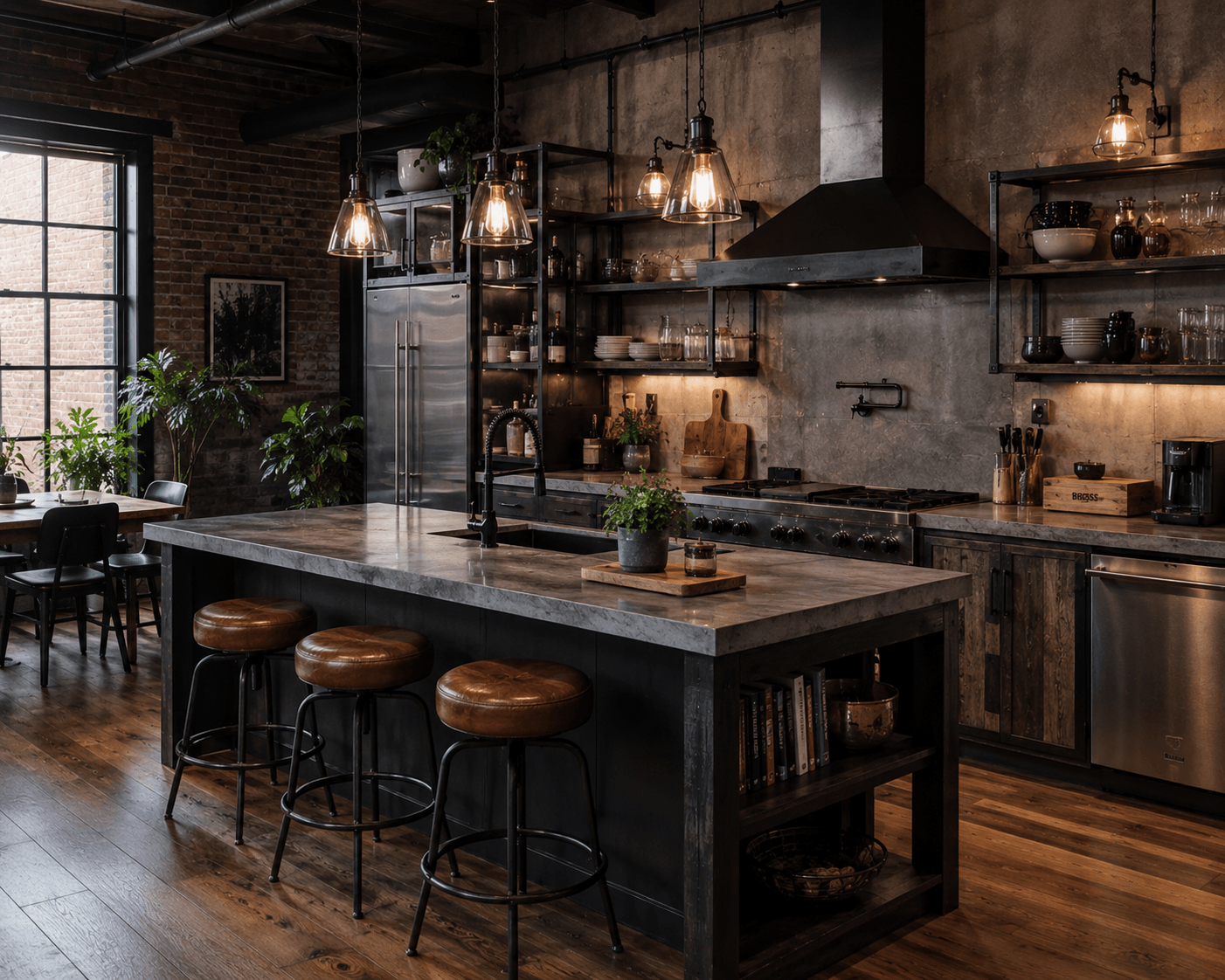
Compare modern, Japandi, industrial, farmhouse, Scandinavian, coastal, traditional, and other interior styles.
Style examples
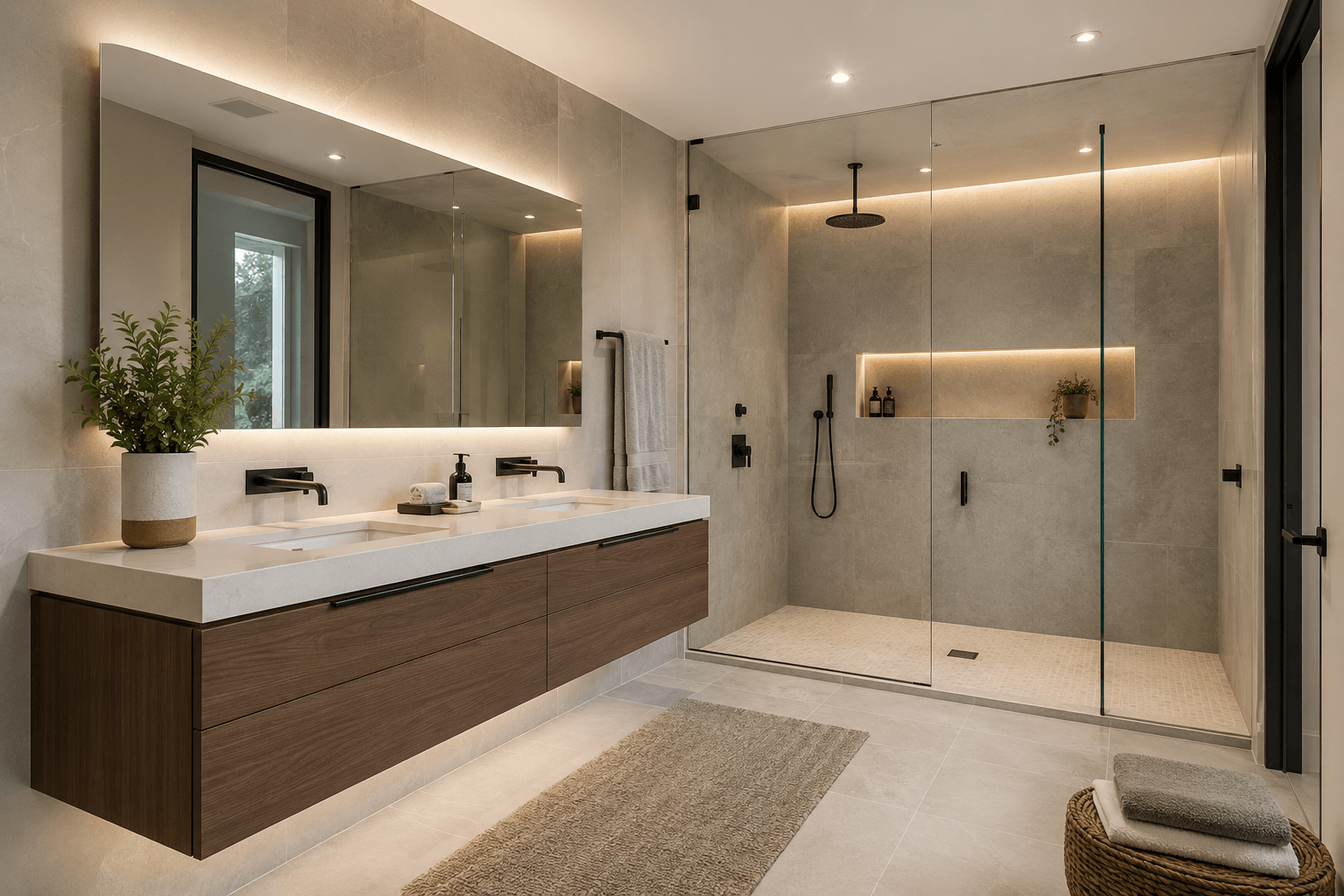
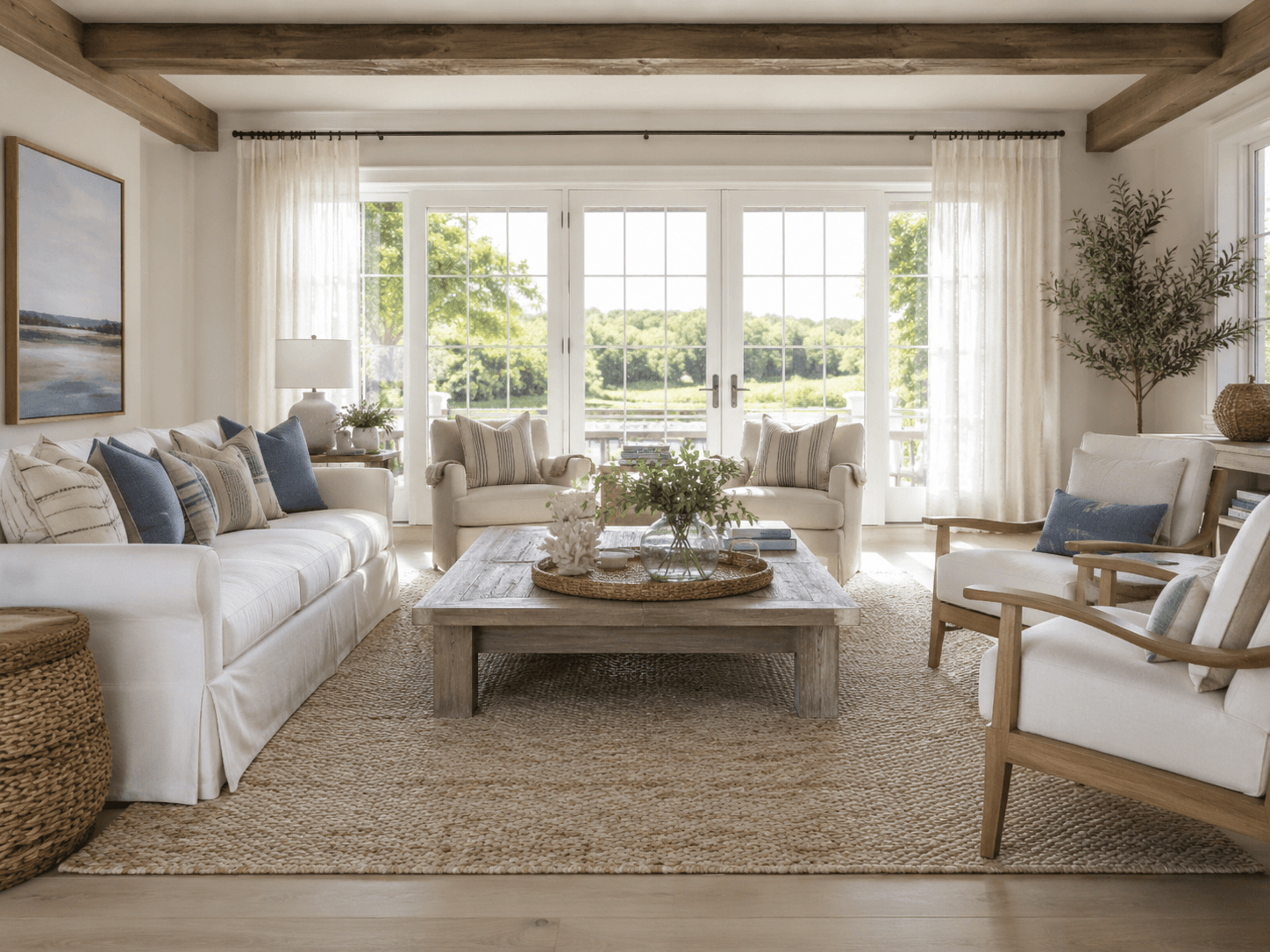
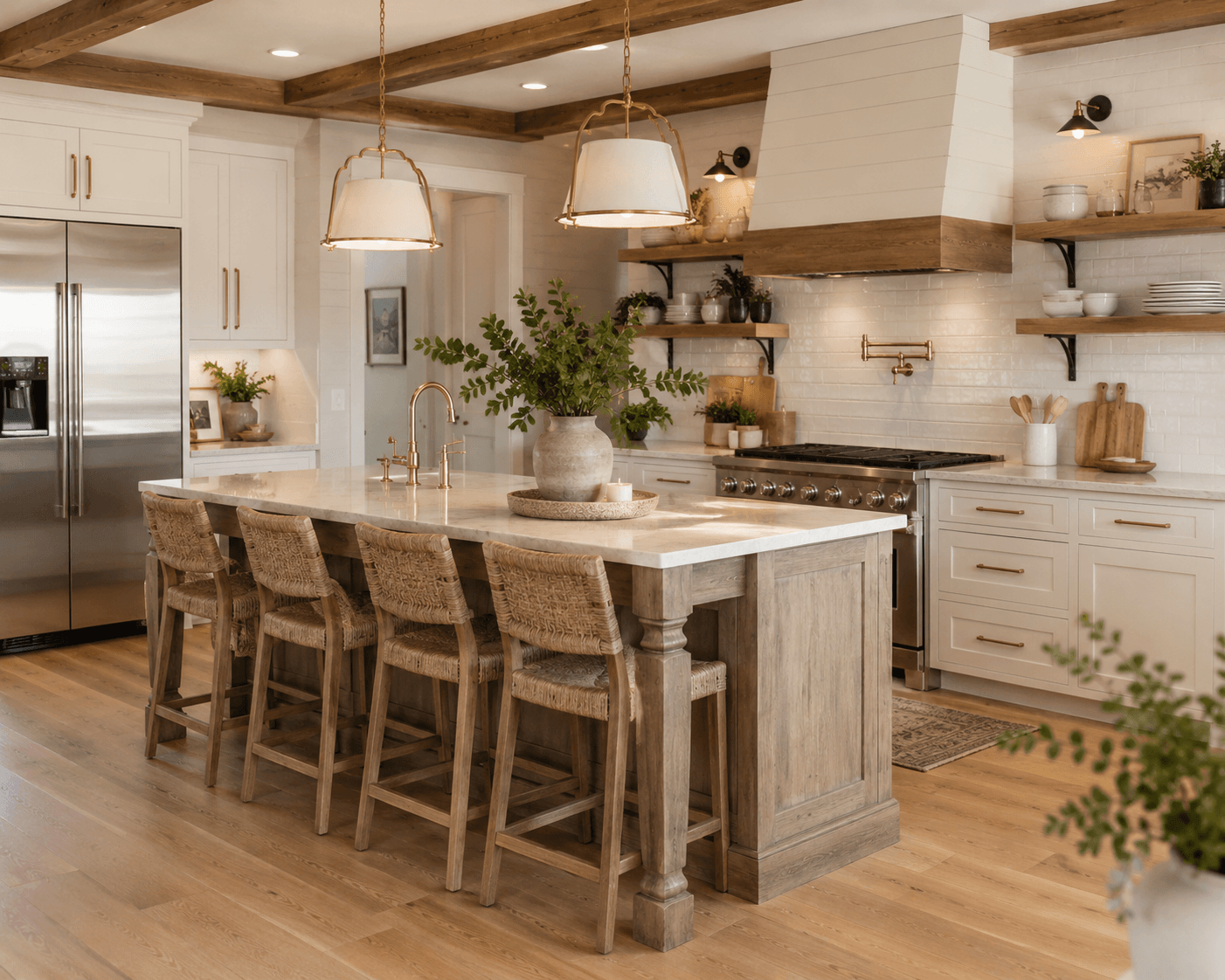
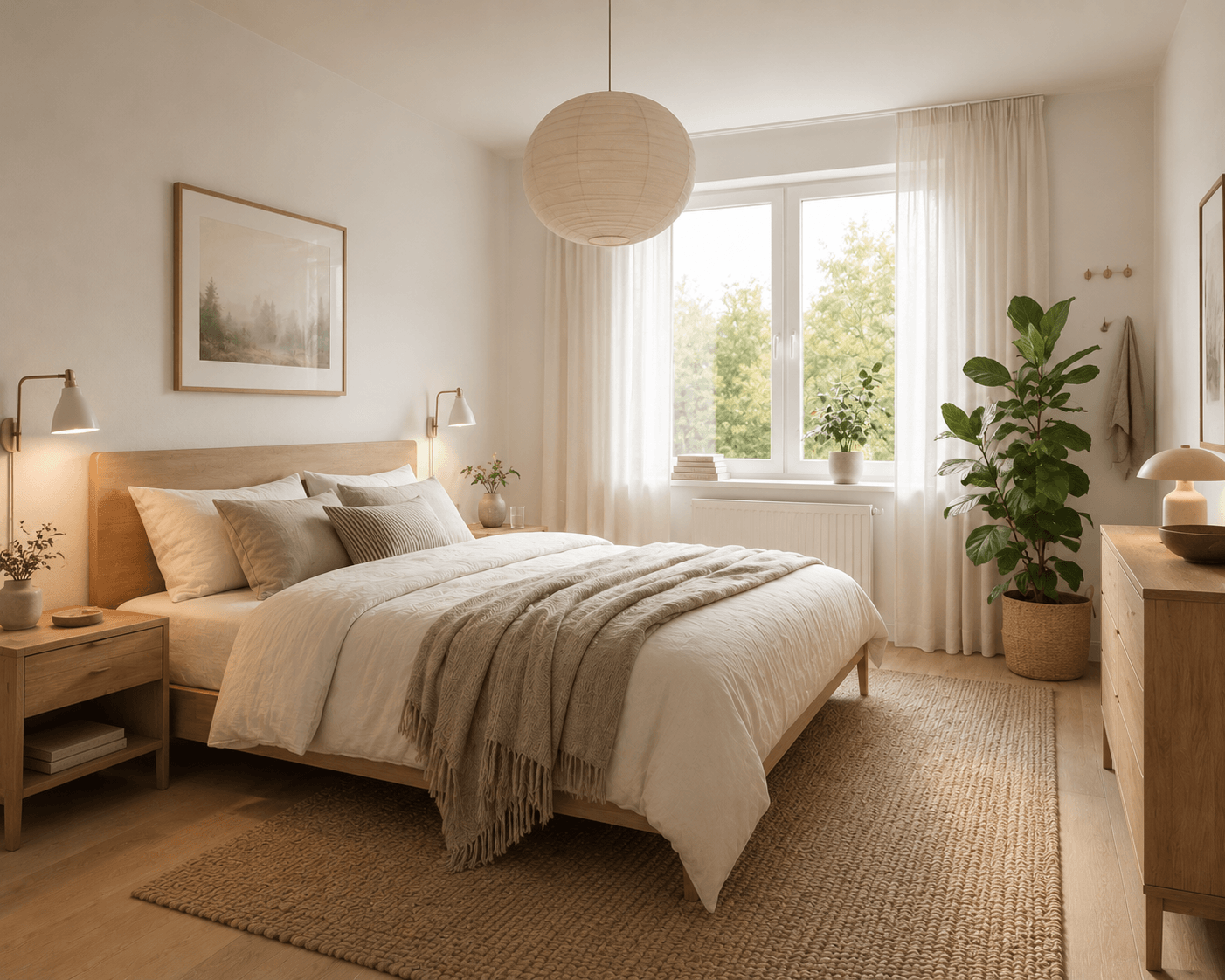
The interior style library includes options for different rooms and moods. You can use styles like modern, Japandi, industrial, contemporary, coastal, farmhouse, Scandinavian, and traditional as starting points for your render.
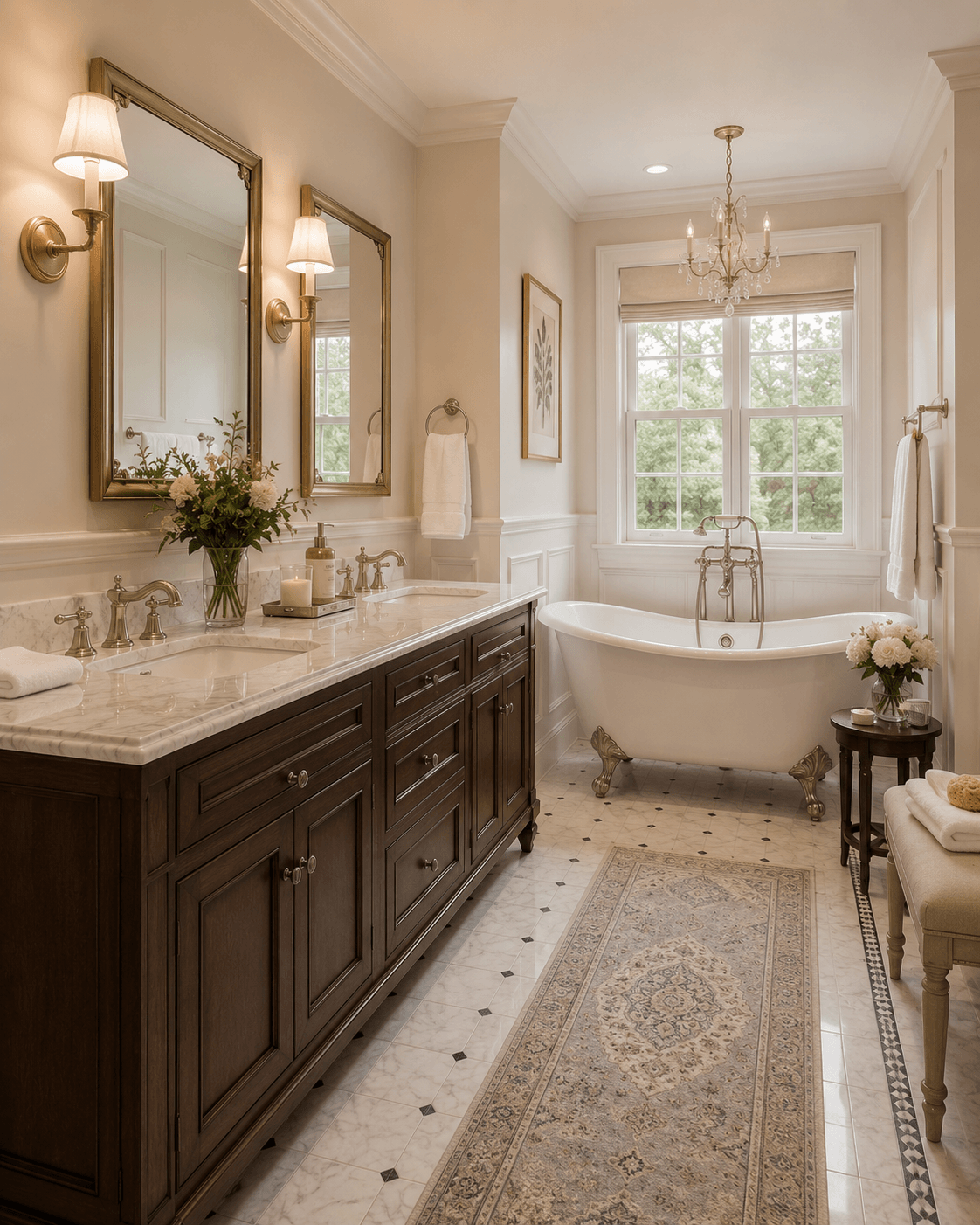
Use cases
Use 3D rendering interior design when the floor plan and room layout are already part of the project. This is useful for connecting the interior render to the same house plan, 3D preview, and design workflow.
Use image-based interior rendering when the room already exists. Upload a photo of your residence, then test furniture, materials, color palettes, and styles before making real-world changes.
FAQ
An interior render is a visual image of a room design. It can show furniture, lighting, materials, color palette, and decor so you can evaluate the interior before making real-world changes.
Yes. You can generate or edit a floor plan, review the 3D house plan, and then use that context to create interior design renders for rooms in the project.
Yes. You can use uploaded reference images or photos of your residence to furnish a room, change furniture, test a different style, or redesign the interior while keeping the room context.
FloorPlan AI supports many interior styles, including modern, Japandi, industrial, farmhouse, Scandinavian, coastal, contemporary, traditional, transitional, boho, mid-century, and more.
Start from a 3D house plan or upload a room photo, then generate interior design renderings with furniture, decor, materials, and styles that match your project.
Start interior rendering