Free GLB furniture models

Bed 3D Models for SketchUp

Download 5 free bed GLB models for SketchUp. Compare styles and real-world dimensions for bedroom layouts, floor plans, and interior design scenes.

bed 3d model sketchup preview

Bed model cards

Download bed GLB model files for SketchUp

Choose a bed preview, compare width, height, and depth in metric and imperial units, then download the GLB model.

queen upholstered platform bed with velvet headboard 3d sketchup model preview

Model #2

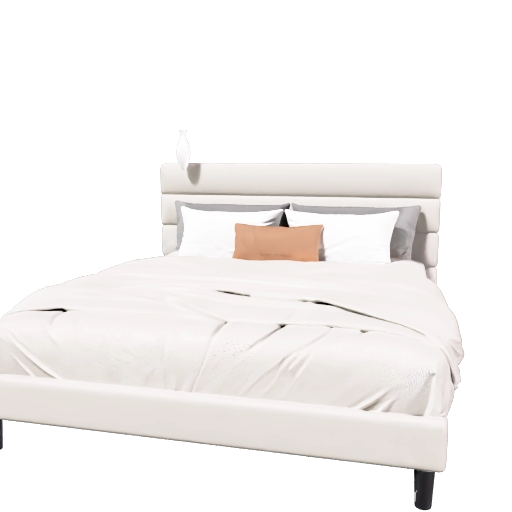
Queen Upholstered Platform Bed with Velvet Headboard

Modern queen bed with an upholstered velvet headboard, metal support, and a platform base that does not require a box spring.

Style
Modern upholstered velvet
Dimensions (W × H × D)
1.537 × 0.986 × 2.093 m
60.5 × 38.8 × 82.4 in
Format
GLB for SketchUp import
Download GLB model
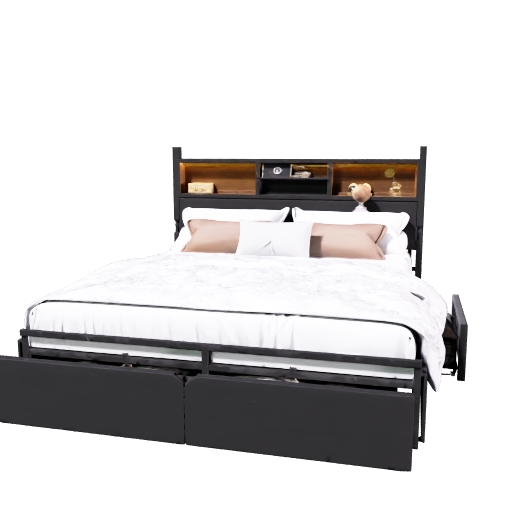
king storage bed with six drawers and tall headboard 3d sketchup model preview

Model #3

King Storage Bed with Six Drawers and Tall Headboard

Wood king bed with six lower drawers, a tall headboard, integrated LED lighting, and a charging station.

Style
Modern wood storage bed
Dimensions (W × H × D)
1.971 × 1.300 × 2.205 m
77.6 × 51.2 × 86.8 in
Format
GLB for SketchUp import
Download GLB model
twin over twin metal bunk bed with ladder 3d sketchup model preview

Model #4

Twin-Over-Twin Metal Bunk Bed with Ladder

Compact twin-over-twin metal bunk bed with an integrated ladder and protective guardrails for smaller bedrooms.

Style
Compact metal bunk bed
Dimensions (W × H × D)
1.060 × 1.600 × 2.000 m
41.7 × 63.0 × 78.7 in
Format
GLB for SketchUp import
Download GLB model
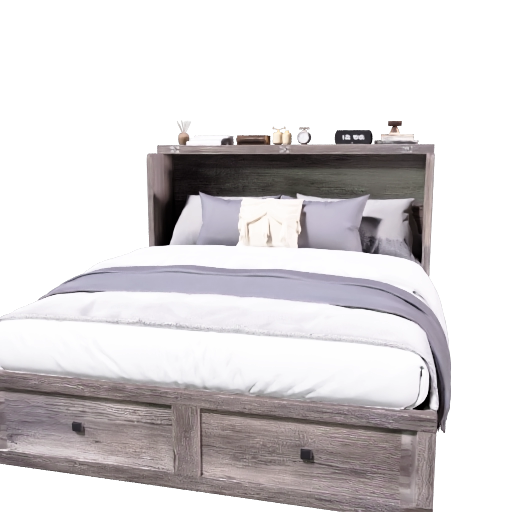
queen farmhouse murphy cabinet bed with storage 3d sketchup model preview

Model #8

Queen Farmhouse Murphy Cabinet Bed with Storage

Retractable queen cabinet bed with a farmhouse finish, storage drawer, folding structure, and casters.

Style
Farmhouse cabinet storage
Dimensions (W × H × D)
1.562 × 1.143 × 2.057 m
61.5 × 45.0 × 81.0 in
Format
GLB for SketchUp import
Download GLB model
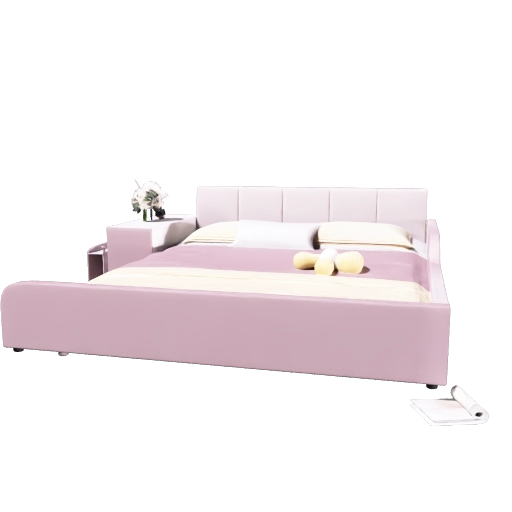
queen upholstered floor bed with side desk and round stool 3d sketchup model preview

Model #13

Queen Upholstered Floor Bed with Side Desk and Round Stool

Low upholstered queen bed with side protection, an integrated desk, a shelf, and a small round stool.

Style
Low upholstered multifunctional bed
Dimensions (W × H × D)
1.854 × 0.737 × 2.159 m
73.0 × 29.0 × 85.0 in
Format
GLB for SketchUp import
Download GLB model
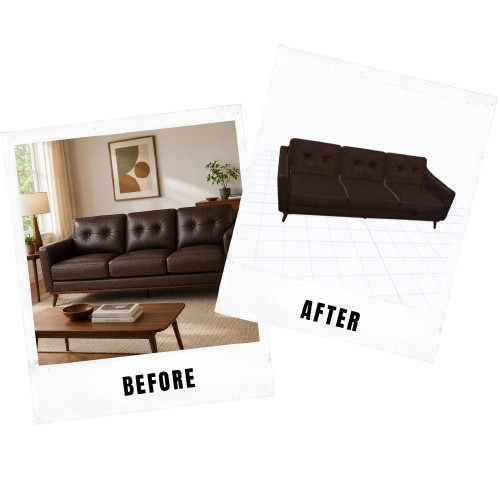
generate a custom bed 3d model from an image

Custom 3D furniture

Create your model

Turn a bed or furniture reference image into a SketchUp-ready 3D model for your project.

Create from image

SketchUp workflow

How to import a bed model in SketchUp

Use each bed GLB model as a reusable furniture asset for SketchUp. Import it through the file menu, turn off Profiles if outline edges look too heavy, then verify its dimensions in your bedroom scene.

Open the full SketchUp import guide
1

Download the GLB bed model

Choose the bed card that matches your bedroom project and download its GLB model file.

2

Import the generated file in SketchUp

In SketchUp, open File > Import, choose the downloaded GLB file, and confirm the import.

3

Turn off Profiles

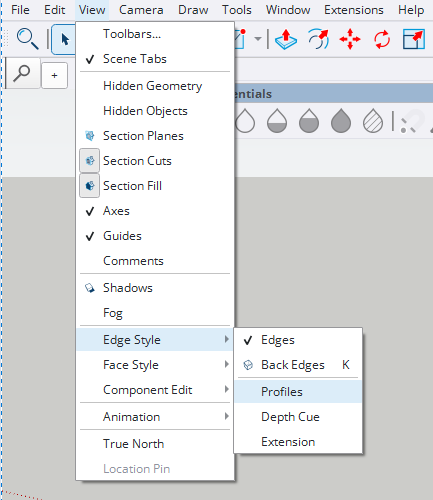
Open View > Edge Style and make sure Profiles is not selected so the imported bed does not show thick outline edges.

4

Check scale and materials

Confirm the bed dimensions, position it in your scene, and adjust materials if your project needs a different finish.

SketchUp
GLB
USDZ

How to import the generated model in SketchUp

Import the generated GLB or USDZ file through the SketchUp import flow, then disable Profiles in Edge Style so the model appears without unwanted thick contour lines.

Formats
GLB, USDZ
Import menu
File > Import
Required view setting
Profiles off
  1. Step 1Download

    Choose a SketchUp-friendly format

    Download either GLB or USDZ from the generated model formats. These are the color-preserving formats shown in the model modal.
  2. Step 2File menu

    Import the generated file

    In SketchUp, open File > Import, choose the generated GLB or USDZ file, and confirm the import.
  3. Step 3Edge Style

    Turn off Profiles

    Open View > Edge Style and make sure Profiles is not selected. This prevents thick outline edges from appearing around the imported model.
    • Edges can remain selected.
    • Profiles must NOT be selected.
    • Back Edges, Depth Cue, and Extension are optional for your view style.
    SketchUp View menu showing Edge Style options with Profiles available.
    Required SketchUp view setting: Profiles must be off.
Done. The model is imported and Profiles is off, so the SketchUp view will not add extra contour thickness around the object.

Interior design use cases

Use bed 3D models in floor plans and bedroom scenes

A bed 3D model helps communicate sleeping layout, circulation, scale, and style inside a bedroom design. Real-world dimensions make it easier to check clearance around walls, wardrobes, and nearby furniture.

The collection includes upholstered queen and king beds, storage designs, a compact metal bunk bed, and multifunctional furniture for different bedroom layouts.

Custom furniture

Generate a SketchUp-ready model from an image

Upload a bed or furniture reference image, generate a 3D model, and use the result in SketchUp, Blender, or your FloorPlan AI workflow.

Generate from image

FAQ

Bed 3D model questions

Are these bed 3D models for SketchUp free?

Yes. This page provides free bed GLB model downloads for SketchUp-supported import workflows.

Which dimensions are shown on each bed card?

Each card lists width, height, and depth in meters and inches so you can compare the bed with your bedroom layout before importing it.

Which SketchUp version should I use?

Use a SketchUp setup that supports importing GLB files, then place the bed and verify its scale inside your project.

Can I use these bed models in a floor plan?

Yes. Bed 3D models are useful for furniture placement, circulation checks, bedroom rendering, client presentations, and 3D floor plan visualization.