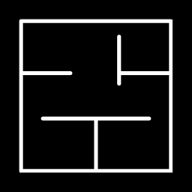
Sketch to Render AI
Turn an architectural sketch into a realistic interior or exterior render. Choose a style, set the lighting, and render up to 4K.
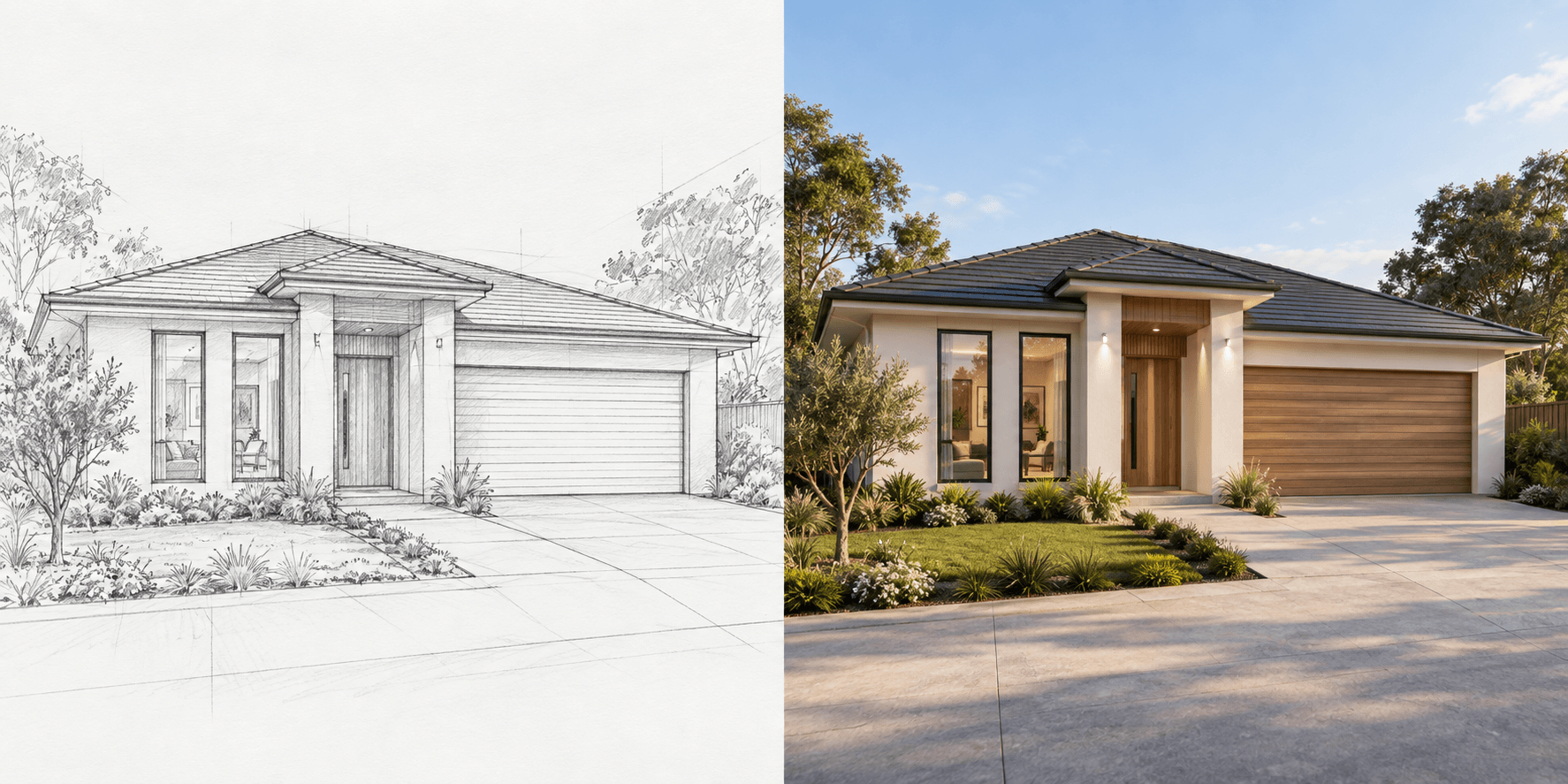
How to turn a sketch into a render
Upload your sketch
Start with a drawing or a clear photo of a hand-drawn sketch. Choose Interior or Exterior to match the scene.
Choose a style and lighting
Pick an optional style for materials, finishes, and colors. Set the lighting to midday, sunset, or night.
Render up to 4K
Use Fast 1K to explore a concept or choose Ultra 4K for a detailed presentation image. The output follows your sketch’s proportions.
Refine the image in the render editor
Open a generated render to compare it with the source sketch and choose how to edit it.
By text
Describe a change to the scene, such as switching to warm evening lighting or giving the house a darker roof.
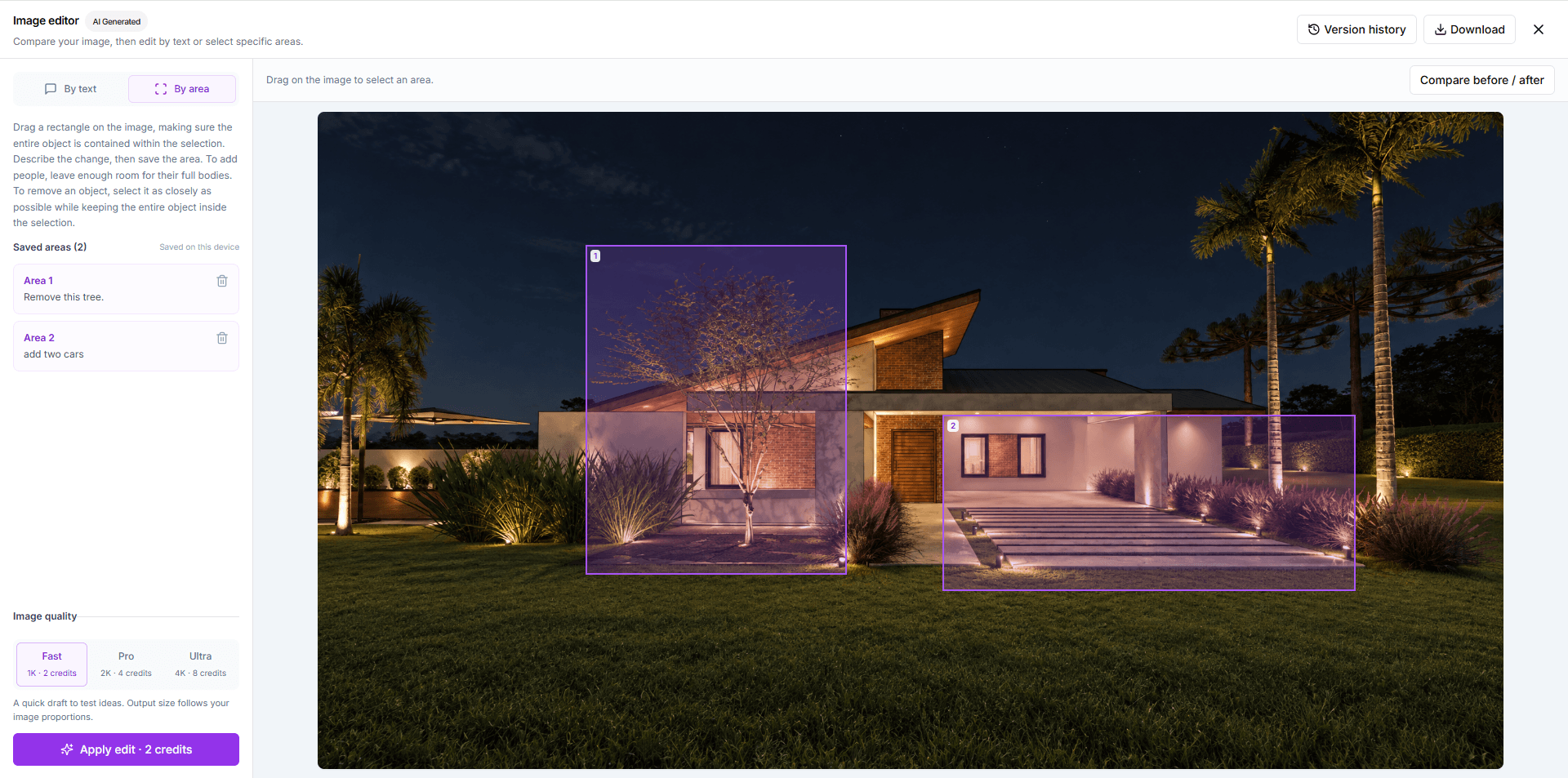
By area
Draw a rectangle around a detail, such as the garage door, and describe what to change there. Save multiple areas with separate instructions.
Adjustments
Fine-tune exposure, highlights, shadows, gamma, brightness, contrast, saturation, and hue. Preview the changes live and download the adjusted image.
Try sketch to render AI for free
The Free plan includes 4 credits. A Fast 1K render uses 2 credits, and an Ultra 4K render uses 8 credits.